


This guide will help you get started and make the most of DepsDiver
Assist. Please review the standard DepsDiver Getting Started Guide to familiarize yourself with DepsDiver’s
core features.
Installation
DepsDiver Assist is available on the VSCode extension marketplace or Open VSX
Registry
Configuration
Once installed, click on the settings button for the extension inside of your IDE to access your DepsDiver
API token and the DepsDiver API URL.
DepsDiver API Token
To generate a DepsDiver API token, navigate to DepsDiver
and sign into your account.
Once signed in, click on your profile icon and select “Tokens.” Click “Add Token” and give your token a name, description, and an expiration time. Click “Create Token” to access your token value.
Please note: This is the only time you will be able to access the token value. If you need assistance with your token, please contact [email protected].
Copy that token and paste it into the DepsDiver Assist’s API token settings section.
Once signed in, click on your profile icon and select “Tokens.” Click “Add Token” and give your token a name, description, and an expiration time. Click “Create Token” to access your token value.
Please note: This is the only time you will be able to access the token value. If you need assistance with your token, please contact [email protected].
Copy that token and paste it into the DepsDiver Assist’s API token settings section.
DepsDiver API URL
The DepsDiver API URL should be prepopulated in the settings section, but if it isn’t, the default API URL
is https://depsdiver.com/api
(click to copy).
Additional Settings
Several other settings can be tuned to maximize your DepsDiver Assist experience.
Most users will adjust “Hl Diver: Foci Threshold Percentage” and “Hl Diver: Highlight Severity.”
Most users will adjust “Hl Diver: Foci Threshold Percentage” and “Hl Diver: Highlight Severity.”
- FOCI Threshold Percentage lets you set a threshold for the percentage of contributions to a specific package before the package is flagged by DepsDiver. The default value is 50%, but feel free to adjust this to your personal or company risk parameters.
- Highlight Severity changes how packages that exceed your FOCI threshold are displayed – either as an error or informational finding in your IDE.
HOW TO USE THE EXTENSION
Automatic Scanning
DepsDiver Assist works with any file written in one of DepsDiver-supported language ecosystems.
When you save a file, the extension will run and highlight packages that exceed your FOCI threshold – a red squiggly line will appear.
Try it out: To see this in action, create a new go file, import the package github.com/mailru/easyjson (click to copy) and save the file. You should see something like this when hovering over the package:
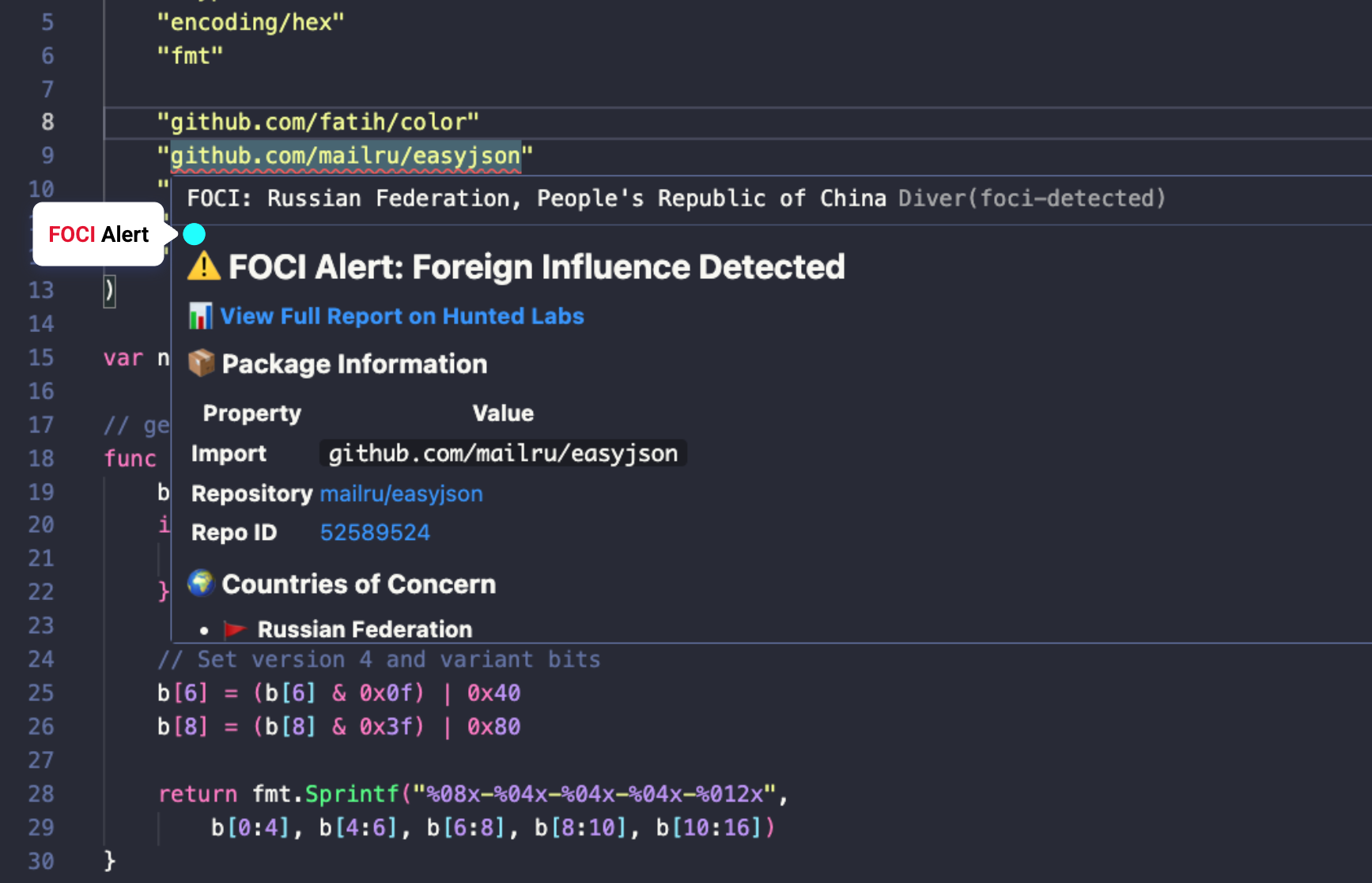
In addition to presenting information identical to what you would see in the DepsDiver UI, our extension also includes alternative package suggestions that offer the same functionality while staying below your set FOCI threshold.
To swap one of these alternative packages into your file or project, click on “Suggest Alternatives” at the bottom of the pop-up. The AI assistant built into your IDE will swap this package into your project and ensure everything is working as expected.
When you save a file, the extension will run and highlight packages that exceed your FOCI threshold – a red squiggly line will appear.
Try it out: To see this in action, create a new go file, import the package github.com/mailru/easyjson (click to copy) and save the file. You should see something like this when hovering over the package:
In addition to presenting information identical to what you would see in the DepsDiver UI, our extension also includes alternative package suggestions that offer the same functionality while staying below your set FOCI threshold.
To swap one of these alternative packages into your file or project, click on “Suggest Alternatives” at the bottom of the pop-up. The AI assistant built into your IDE will swap this package into your project and ensure everything is working as expected.
Manual Scanning
You can also manually scan files in your workspace by opening the command pallet in your IDE.
Once in the command pallet, find the “Diver” commands. There are two main options: Scan File and Scan Workspace. Click these to get a FOCI status report of all of the imported packages in your selected file or workspace.
Once in the command pallet, find the “Diver” commands. There are two main options: Scan File and Scan Workspace. Click these to get a FOCI status report of all of the imported packages in your selected file or workspace.
Need Assistance?
Please send us an email at [email protected]. Happy diving!